bbdbuy Mobile vs Desktop Shopping Workflow
bbdbuy Mobile vs Desktop Shopping Workflow
bbdbuy Mobile vs Desktop Shopping Workflow: Choosing Between Quick Browsing and Deep Organization
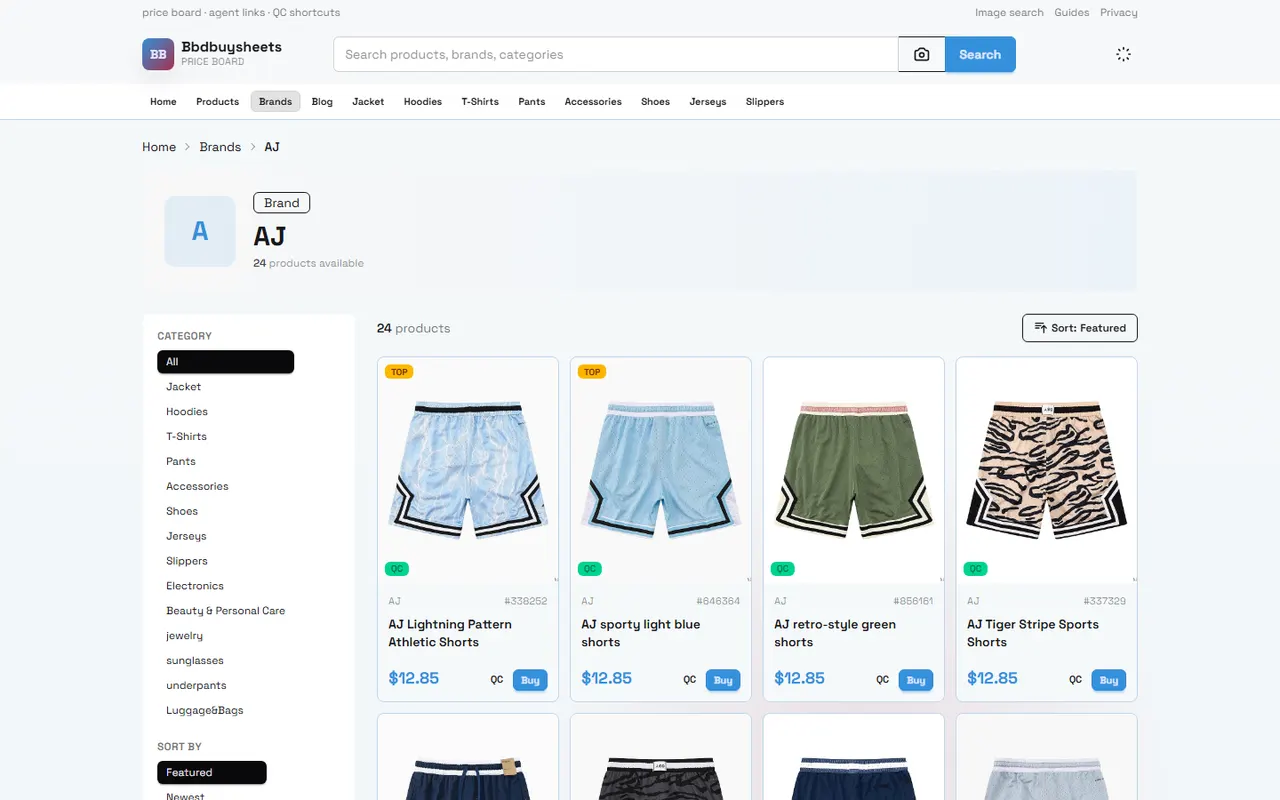
Caption: Comparison of product search flows on bbdbuy mobile and desktop.
Many people who open bbdbuysheets.com to look up products get stuck not on "can I find it?" but on: should I quickly browse on my phone first, or go straight to a full comparison on my computer? This article solves one task: helping you clearly separate the mobile and desktop use cases for bbdbuy, and build a repeatable workflow for searching, saving, organizing, and pre-order confirmation.
This article is for buyers who are browsing bbdbuy product sheets and want to pick an orderable item from multiple candidates. It is not suitable for judging whether a specific product is definitely in stock, whether a seller is permanently reliable, or whether a particular shipping route is currently guaranteed; these all need to be re-verified against the visible page information and the platform's current process before ordering. Verification date: 2026-09-14.
First Determine If Your Search Task Is Quick Browsing or Deep Organization
Before looking up products on bbdbuy, divide your task into two types: quick browsing and deep organization. The goal of quick browsing is to discover items that might be worth further review; the goal of deep organization is to turn candidate items into a list that can be re-checked before ordering.
If you just want to see if a category has suitable styles, mobile is usually more convenient. For example, looking at pictures during your commute, scanning by keyword, and temporarily saving a few candidates—these actions don't require complex notes; the focus is speed and intuition.
If you already have multiple candidate items and need to compare names, images, specifications, colors, sizes, remarks, source links, and ordering risks, desktop is more suitable. A computer screen can open multiple tabs at once, and it's easier to organize candidates into a spreadsheet or notes, reducing missed information.
A simple rule of thumb: if after looking you only need to decide "should I save it for later?", use your phone; if after looking you need to decide "which one can go to pre-order verification?", use your computer. 📱💻
Purpose | Better Device | Reason |
|---|---|---|
Casual browsing for new items or inspiration | Mobile | Quick to open, good for image previews and temporary saves |
Comparing multiple products side by side | Desktop | Larger screen, easier for multi-tabs and notes |
Checking specs, remarks, and links | Desktop | Less likely to miss details |
Quickly confirming a saved item | Mobile | Good for short, quick re-checks |
Final organization before ordering | Desktop | Better for creating a reviewable list |
What Immediate Filtering and Saving Actions Are Better on Mobile
Mobile's advantage is its lightness. You can complete the first round of filtering in fragmented time, eliminating obviously unsuitable items and keeping only candidates worth returning to on your computer.
When looking up bbdbuy products on mobile, prioritize these actions:
Check if the product image matches the target category; don't judge solely by the title.
Look for category, style, or use keywords you care about in the product name.
Watch for obvious mismatches, such as an image that looks like shoes but a title that sounds like accessories.
Save or note items you're temporarily interested in, rather than ordering right away.
Keep questions for uncertain items, such as size, color, material, or version.
Mobile is not suitable for too many final judgments. On a small screen, image details, remark fields, and the page after a redirect are easier to miss. Especially when it comes to size, color, version, set quantity, or whether it's sold individually, it's not recommended to decide on a purchase based solely on quick mobile browsing.
A safer approach is to use mobile as the first sieve: collect candidates first, then return to desktop for verification. This way you don't sacrifice discovery efficiency, nor do you mistake a hasty browse for a complete check. 🙂
What Multi-Tab Comparison and Note-Taking Actions Are Better on Desktop
Desktop is best for handling the problem of "too much information." When looking at just one item, mobile might be enough; but when you're comparing 5, 10, or even more candidates simultaneously, desktop's advantages become obvious.
On desktop, it's recommended to do these actions:
Open a separate tab for each candidate item to avoid losing your place when going back and forth.
Record the product name, key specs, color, size, source link, and remarks into a single list.
Mark items where the image and title are inconsistent, specs are unclear, or description is missing.
Categorize candidates into "orderable", "needs confirmation", and "discard".
Reopen candidate pages before ordering to confirm the link still works and the information hasn't changed significantly.
Desktop's focus is not about looking "more advanced" but looking more completely. You can keep the bbdbuy page, the product source page, your own notes, and your shipping or consolidation plan in the same workspace, eliminating risks item by item.
If you buy different categories often, establish fixed record fields: product name, category, intended use, spec questions, image questions, whether customer service confirmation is needed, and whether it's entered as an ordering candidate. The clearer the fixed fields, the less likely you are to skip key checks later because you liked the image at first glance.
Compare Two Operating Paths Using the Same Product Task
Suppose your task is to find a top suitable for daily wear. Mobile and desktop can divide the work like this:
Mobile does discovery first: open bbdbuy, search or browse the relevant category, and quickly see if the image style matches your expectations. When you see a potentially suitable item, don't rush to judge authenticity, quality, or final size; just record it as a candidate.
Desktop does verification next: open each candidate one by one, and check whether the title, images, color, size, remarks, and source link support each other. If an item has only fuzzy images but insufficient spec information, put it in "needs confirmation" rather than "orderable".
Finally, do pre-order organization: keep only items with sufficient information, clear purpose, and acceptable risk. For candidates still in doubt, either contact the platform or seller to confirm, or discard; don't fill in key fields with guesses.
The benefit of this flow is that mobile handles discovery, and desktop handles judgment. They are not substitutes but a relay. 🔎
Verification Boundaries for Image Preview, Link Opening, and Back Navigation
When looking up products on bbdbuy, image previews are important, but images alone cannot be the basis for purchase. Images help you judge style, general color direction, and product type, but they cannot prove actual material, size accuracy, stock status, or the physical quality after arrival at the warehouse.
Three boundaries need special attention:
Image boundary: it only shows what the page displays, not what you will actually receive.
Link boundary: a link working does not mean the item is currently buyable, nor that all specs are in stock.
Back navigation boundary: on mobile, frequent back navigation may lose your filter position; important candidates should be recorded promptly.
If there are contradictions among image, title, and specs, prioritize marking the item as "needs confirmation". For example, the image shows multiple color options, but the page doesn't clearly describe the color choices; or the title says it's a set, but the remark looks like a single piece. In such cases, don't rely on experience to guess.
When verifying on desktop, for each candidate, at least confirm four things: can the page open, is the product name clear, does the visible information support your intended use, and are there any issues still needing pre-order confirmation.
When to Switch from Mobile to Desktop for Further Verification
Not all browsing needs to switch to desktop. Only when an item enters the "possible purchase" stage does it require finer verification.
Consider switching from mobile to desktop when:
You have saved multiple similar items and can't tell the difference on mobile.
The item involves size, version, color, or set contents.
You need to compare cost-effectiveness, risk, and use among different items.
The item's image is attractive, but the text information is unclear.
You are about to add to cart or submit an order and need a final check.
When switching devices, the most important thing is not to save only a vague impression. Keep information that can relocate the product, such as the product title, page position, saved status, or a clickable candidate record. Otherwise, when verifying on desktop, you may easily fail to find the same item and have to search again.
A more stable way is to add a simple status to candidates: new discovery, pending verification, pending confirmation, orderable, discard. This way, when you switch from mobile to desktop, you don't start over, and you don't mistake "just thought it was good" for "already checked". ✅
Final Candidate, Spec, and Remark Organization Before Ordering
The goal before ordering is not to make the list longer, but to make it clearer. The fewer the final candidates, the easier the verification; the clearer the fields, the less effort for later warehouse inspection and after-sales communication.
The recommended final candidate list should include at least the following information:
Product name: use the page's visible name; don't change it to a hard-to-trace abbreviation.
Intended use: explain why you're buying it, e.g., daily wear, matching, collecting, or replacement.
Spec selection: record key choices like color, size, version, quantity.
Question notes: write clearly what needs to be confirmed; don't just write "look".
Discard reason: record one sentence for excluded similar items to avoid re-comparison later.
Verification Item | Signal to Proceed | Signal to Pause |
|---|---|---|
Product name | Consistent with image and category | Vague name or mismatch with image |
Image information | Main style clearly visible | Key angles missing or excessively blurry |
Spec selection | Color, size, or version clear | Option descriptions cannot correspond to actual item |
Link status | Page opens and information visible | Page error, redirect, or insufficient information |
Remark issues | Questions can be resolved via confirmation | Key purchase conditions cannot be verified |
If an item fails these checks, it doesn't necessarily mean it's bad; it just means it's not suitable for direct ordering. For cross-border purchases, discarding items with insufficient information often saves more time than later handling returns, reshipments, or dispute communication.
Choose the bbdbuy Workflow That Suits You
The most practical bbdbuy workflow can be summarized as: mobile for quick discovery, desktop for deep organization, and one more candidate verification before ordering.
If you're just casually looking, mobile browsing and saving is enough; if you're ready to buy, switch to desktop and organize candidates clearly by name, spec, link, and questions. This won't guarantee every purchase is perfect, but it can significantly reduce problems caused by missed information, wrong spec clicks, product confusion, or impulsive image-based ordering.
Final recommendations:
To save time: filter on mobile first, then verify on desktop.
To reduce errors: don't skip spec and link checks.
To facilitate after-sales: keep clear candidate records and notes before ordering.
Not recommended: placing an order after just looking at a few images on mobile, especially for items with unclear size, color, version, or set contents.
The added cost of this workflow is a few extra minutes of organizing; the savings are time from repeated searches, wrong spec purchases, and subsequent communication. Suitable for buyers who frequently compare multiple items on bbdbuy, and also for first-time users who want to see each step clearly before ordering. 🧭
Agent Platform Shopping FAQ
1. What kinds of items can I browse on bbdbuysheets.com?
bbdbuysheets.com carries a wide variety of product types, such as footwear, t-shirts, sweaters, hoodies, denim, joggers, shorts, swim shorts, clearance stock from factories, puffer coats, baseball jerseys, button-up shirts, headwear, accessories, bags, electronics, sunglasses, socks, underwear, and popular collectible figures.
2. What is the reason bbdbuysheets.com does not use Google Sheets for its product listings?
Google Sheets works only for a limited number of items. When the catalog grows, loading becomes sluggish and the whole sheet lags. This is even worse on phones, where the display is hard to read and finding a product is frustrating. For the same catalog, bbdbuysheets.com's spreadsheet loads quicker and looks much better on screen.
3. How do I find a specific product on bbdbuysheets.com?
You can enter a single keyword into the search bar or browse the category page, which also sorts items by brand. Longer search phrases usually give fewer but more accurate results than short ones. For instance, you can look up "Air Force 1 White," "sneakers," or just "Air Force 1."
4. How can I tell if a product on bbdbuysheets.com is of good quality?
To judge quality, check the QC pictures rather than the factory's own photos, which are often edited. Use the QC images to see whether the product matches your specific detail needs before buying. Also, steer clear of extremely cheap items, as they tend to be poor quality.
Browse our latest products and find your next favorite item.